With the API Scan feature, AeyeScan allows you to crawl and scan APIs.
It supports importing APIs in three formats: OpenAPI file, cURL command, and HAR file.
Additionally, for APIs using Bearer authentication, access tokens can be automatically carried over using the method described below.
| Table of Contents
Domain Registration
Register the domain information of the target API in advance and perform domain activation.
For details on domain registration, please follow "Step 3: Register a Domain" and, if necessary, "Step 4: Domain Activation."
Creating a New Scan
- Click "+ New Scan" from the Scan List.
- Set the "Site Name" and enter the API domain in the "Top URL" field.
- Under Basic Information > Site Type, select "API" to display the screen for importing the target APIs.
Importing APIs
Import your APIs using the steps below corresponding to each format:
<Importing via OpenAPI File>
- Click "OpenAPI File Import."
-
Select the OpenAPI file from the file selection dialog.(Note: Both YAML and JSON formats are supported for OpenAPI files.)
-
The imported APIs will be listed on the screen.
<Importing via cURL Command>
-
Click "cURL Command Import."
-
In the "Enter cURL Command" screen, input the cURL command used to execute the API, then click "Register."
-
The imported APIs will be displayed.
<Importing via HAR File>
-
Click "HAR File Import."
-
Select the HAR file from the file selection dialog.(Note: A HAR file is a JSON file that records browser communication. It can be obtained from browser developer tools, etc.)
-
The imported APIs will be displayed.
Editing Target APIs for Scanning
APIs imported into AeyeScan using the methods above can be edited by clicking the pencil icon.
Setting Up Bearer Token Carry-over
When using Bearer authentication, access tokens can be carried over automatically.
In the target API list, check the box in the "Login" column for the API that issues the access token.
|
MEMO
|
Setting Up API Keys
If API keys or tokens are required, you can configure them before crawling via "Form Input Values" or "Custom Headers."
Example: When an API key and API token are sent under the parameter names
API_KEY and API_TOKEN respectively:
<Setting via Form Input Values>
Configure the parameters in the Form Input Value Settings feature.
<Setting via Custom Headers>
Configure the headers in the Custom Header feature.
After completing the configuration, click the "Register" button at the bottom of the screen to register the scan.
Executing the Crawl
Once the setup is complete, execute the crawl.
Checking Crawl Results
After the crawl is complete, check the Screen Diagram to verify that each API was accessed successfully.
During the crawl, AeyeScan crawls an automatically generated HTML page (a screen designed to execute the API) to capture API communication details.
Counting from the top page, the screen on the 3rd layer displays the API execution results (responses). Please verify if normal responses are being returned.
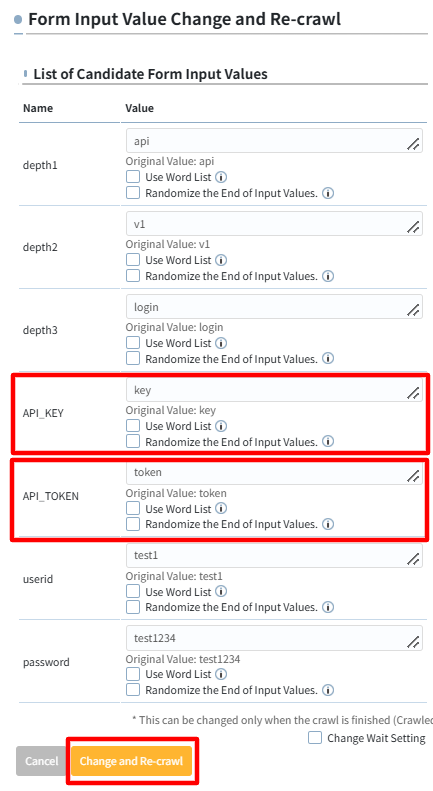
Setting API Keys or Tokens via "Changed form input value and started recrawl"
If API keys or tokens need to be adjusted, you can also modify values from the Screen Diagram using the "Changed form input value and started recrawl" feature.
To configure this, click the snail icon on the screen where the error occurred.
On the "Changed form input value and started recrawl" screen, set the correct API key or token, then click the "Change and Recrawl from This Page" button.
|
MEMO In addition to API keys or tokens in request headers, the following items can also be modified: depth → Path parameter param → Query parameter title & author → JSON request (Request body) |
Executing the Scan
After confirming successful access to each API on the Screen Diagram, execute the scan.
This concludes the guide on how to use the API Scan feature.